


Remote Technical Support
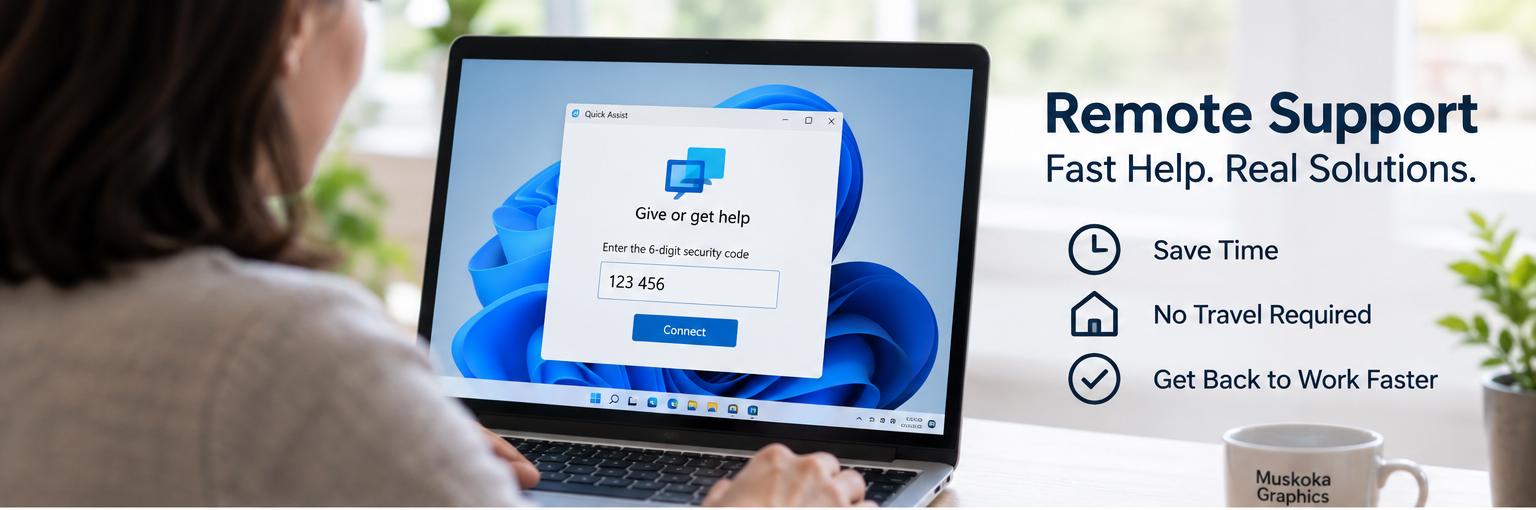
Remote Computer Support for Windows
 Many Windows computer problems don't require an onsite visit or a trip to a computer repair shop.
With Remote Technical Support from Muskoka Graphics, we can connect to your Windows computer over the Internet and troubleshoot many software, configuration and everyday computer problems while you remain comfortably at your home or office.
Remote support can save time, eliminate unnecessary travel and often get you back to work much faster.
Windows Support Using Remote Software
Muskoka Graphics provides remote support for Windows computers using Microsoft Quick Assist.
Quick Assist allows us to temporarily view your screen and, with your permission, take control of your computer to diagnose and correct problems.
There's no Muskoka Graphics remote-access software permanently installed on your computer and you remain in control of the connection.
Every support session requires your participation and authorization.
 What Can We Help With Remotely?
Many common Windows problems can be diagnosed or corrected remotely, including:
-
Windows configuration and troubleshooting
-
Software installation and configuration
-
Email setup and troubleshooting
-
Printer and peripheral configuration
-
Internet and network troubleshooting
-
Slow computer diagnosis
-
Windows updates
-
Software errors and conflicts
-
Browser problems
-
Microsoft 365 and Office issues
-
File and folder problems
-
General Windows assistance and training
Some problems can't be repaired remotely. Hardware failures, computers that won't start, certain network failures and other physical problems may require onsite or in-shop service.
We'll let you know if we determine that remote support isn't the appropriate solution.
How Remote Support Works
Getting connected is straightforward.
1. Contact Muskoka Graphics
Call us or submit a support request and tell us what's happening with your computer.
2. Open Microsoft Quick Assist
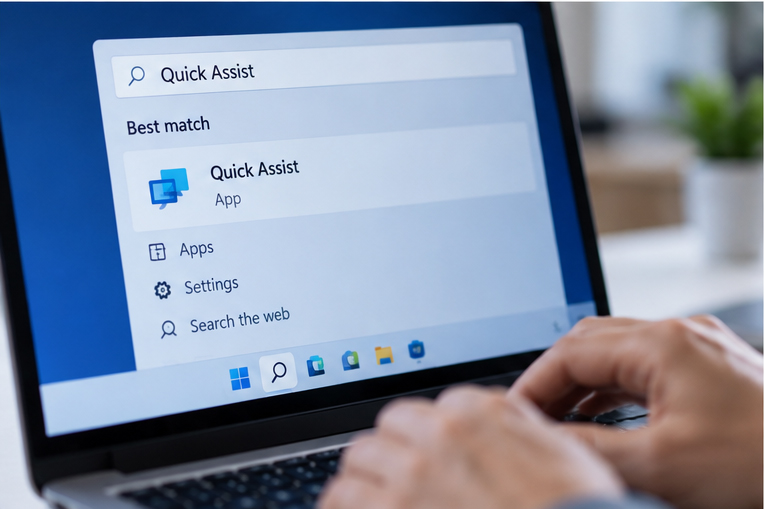
On your Windows computer, click Start and type Quick Assist. Open the Microsoft Quick Assist application.
If Quick Assist isn't already available on your computer, it can be installed through the Microsoft Store.
3. Enter Your Security Code
We'll provide you with a temporary 6-digit security code. Enter that code into Quick Assist and follow the prompts to allow the connection.
4. You Approve the Connection
You decide when to share your screen. If we need to control your computer to perform troubleshooting, Quick Assist will ask you to approve that separately.
5. We Get to Work
Once connected, we can see what you're seeing and work with you to diagnose and resolve the problem.
When the support session is finished, the remote connection is ended.
You Stay in Control
Security is important whenever someone accesses your computer remotely.
Muskoka Graphics will only initiate a Quick Assist session after you've contacted us and arranged for remote support.
You must approve the connection before we can see your screen and approve remote control before we can operate your computer.
Never give a Quick Assist security code or access to your computer to an unexpected caller claiming to be technical support.
Remote Support for Home & Business
Remote support isn't just for emergencies.
We can also use it to help configure software, set up email, troubleshoot Windows problems, assist employees, answer technical questions and make changes that would otherwise require an onsite service call.
For Muskoka businesses, it can be an especially convenient way to resolve everyday computer problems and keep employees productive without waiting for a technician to travel to your location.
Need Remote Computer Help?
If you're experiencing a Windows computer problem, contact Muskoka Graphics to find out whether we can resolve it remotely.
Call (705) 687-7666 or submit a support request to get started.
Please do not initiate a Quick Assist session until you've contacted us and arrangements for support have been made.
Content Management Systems (CMS)
(CREA) and identifies CREA’s Data Distribution Facility (DDF®)
Why it's worth to choose be|hosting?
Morbi in sem quis dui placerat ornare. Pellentesque odio nisi, euismod in, pharetra a, ultricies in, diam.

Safety

Stability

Technical support
